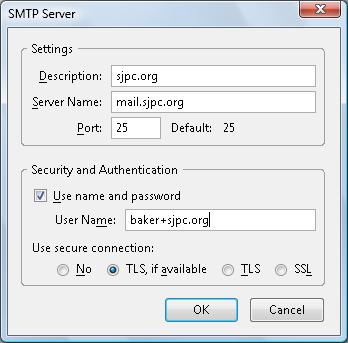
To set the SMTP server (outbound) to sjpc.org in Thunderbird 2.0...
Click Tools > Account Settings. In the left pane, scroll down to the bottom and
click on Outgoing Server (SMTP), which will bring up the information like you
see on the right below...

Select whatever SMTP server is there and click Edit. Change the settings as
follows and specify your User Name. Click OK then OK.

To create an IMAP or POP3 account (inbound) for sjpc.org in Thunderbird 2.0...
Click Tools > Account Settings. In the left pane, click Add Account then Email
Account then Next. On the Identity panel fill in your name and email address
then click Next. On the Server information panel, specify POP or IMAP, the
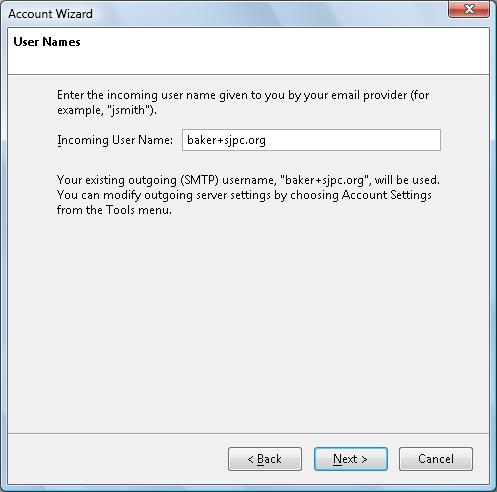
server name (sjpc.org), then click Next. Specify your User Name again (note: no
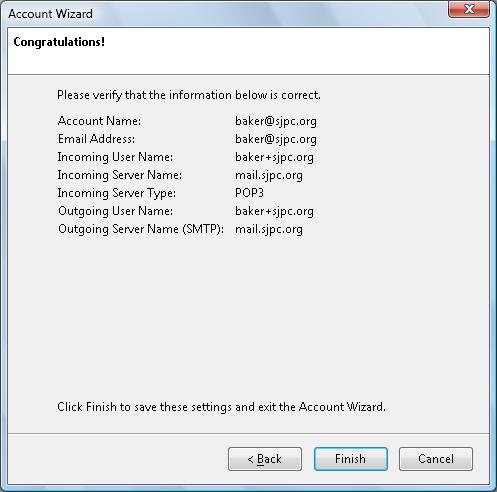
@sjpc.org) and click Next. Review your settings and click Finish.
When you use Netscape 6.x or higher, multiple
POP
and IMAP accounts are supported in a single profile as well as an AOL
mail account, and each account has separate mail folders. When receiving
mail is initiated by clicking "Get Messages", mail messages (or IMAP headers)
are received from only the POP or IMAP account selected. When you
send a message, the SMTP server used is always the default outgoing mail
server that you set up. When using multiple accounts, you can select
the From account in the "From" pop-down list of the "Compose" window, but
this doesn't override the default outgoing mail server as it does in newer
versions of Outlook Express. Therefore, you may have to change the
outgoing SMTP mail server as shown in the procedure titled "Changing
Information for Mail and News Accounts".
Setting Up New Mail and News Accounts
Launch Netscape Communicator browser.
1. Click the Tasks menu and click Mail to open the mail window.
2. Click the Edit menu and click Mail/News Account Settings.
3. Click the New Account button to activate the New Account wizard.
4. Set the type of account to "ISP or e-mail provider", and click Next.
5. In the Identity section, enter your name (as you would like it to appear in the "From" field of messages you send) and e-mail address (userid@sjpc.org), and click Next.
6. In the Server Information section, select the type of incoming mail server ( IMAP or POP3). Enter the incoming server name: mail.sjpc.org and if the field appears, the outgoing SMTP server name: mail.sjpc.org (or to your ISP's mail server if required), and click Next. Note: If you already have an outgoing server specified, see "Changing Information for Mail and News Accounts".
7. In the User Name section, enter your assigned user name and click Next.
8. In the Account Name section, assign a name for this account (for example, userid@sjpc.org), click Next, and click Finish.
9. Enter outgoing server name mail.sjpc.org (or to your ISP's mail server if required), and click OK. If you have problems sending mail, go to the procedure titled "Changing Information for Mail and News Accounts" and make sure you have to correct outgoing mail server specified. Also, if it is the SJPC account, make sure "Use name and password" is checked, and the password is correct.
10. Close Mail window box.
11. Click Edit, click Preferences, enter the desired home page, and click OK.
12. Close Netscape.
Changing Information for Mail and News Accounts
Launch Netscape Communicator browser.
1. Click the Task menu and click Mail to open the mail window box.
2. Click the Edit menu and click Mail/Newgroups Account Settings.
3. Click the account name in the left-hand side of the Account Settings window. Change the settings about the account such as your e-mail address and signature file if necessary. If you have multiple mail accounts, click the Advanced button, select the desired outgoing server in the drop down list (See step 6 to add to list), and click OK.
4. Click the Server category (beneath the Account name). Change the server settings such as downloading new messages if necessary.
5. Click the Copies and Folders category. Change such options as placing a copy in the sent mail folder if necessary.
6. Click Outgoing (SMTP) Server to specify the correct default SMTP outgoing server. To edit, add, or change the list of outgoing servers, click the Advanced button. Next, to edit an existing outgoing server, click the Edit button, make changes. To add an outgoing server, click the Add button, key in the server name and click OK. Click the radio button "Never" for "Use secure connection" if necessary. To change the default outgoing server, select the server in the list, click Set Default button, and click OK. If it is an SJPC account, "Use name and password" must be checked and the User Name entered while setting up an outgoing SMTP server.
7. Click OK to save the new settings.
8. If you need to change server type (IMAP or POP) or user name, you must delete the existing account and recreate it with the new settings using the previous procedure titled "Setting Up New Mail and New Accounts".
When you use Outlook Express, one profile
is used for multiple mail accounts, and when send/receive is initiated,
mail messages (or IMAP headers) are received from all POP
and IMAP accounts into the same folder. If you want separate mail folders
for each account, you have to use multiple identities which are described
in the Outlook Express help text. When you send a message using Outlook
Express, the SMTP server used is the default mail account's server (IE4),
or the SMTP server can be manually selected in the "from" pop-down list
containing all mail accounts (IE5 or higher) and overrides the default
mail server.
Launch Outlook Express
1. Click on Tools, click on Accounts, click Add, click Mail and type your Name, and click Next.
2. Type in your E-mail Address (Example: userid@sjpc.org), and click Next
3. Set POP3 or IMAP server from the pull down list, type in your POP3 or IMAP Account: mail.sjpc.org, and type in your SMTP Account: mail.sjpc.org (or to your ISP's mail server if required), and click Next.
4. Type in your assigned User Name, type in your Password, and check Remember Password, and click Next.
5. Click Finish, click Set as Default (if
desired), and click Close.
6. To setup required outgoing mail authentication,
click Tools, click Accounts, and click Mail tab.
7. Select the mail.sjpc.org account.
8. Click Properties, click Server tab, and check My server requires authentication.
9. Click OK and click Close.
10. Close Outlook Express
Launch Internet Explorer
1. Click View (IE4) or Tools (IE5 or higher).
2. Click on Internet Options, click on the Navigation Tab (IE4) or General tab (IE5 or higher), and under home page.
3. Enter your desired home page and click OK.
4. Close Internet Explorer.
There are two steps to setting up Outlook Express to read and send AOL e-mail. First, you need to create a new e-mail account in Outlook Express. Once the e-mail account is created, you need to configure your Outlook Express e-mail account so you can send and receive your AOL e-mail.
To create a new e-mail account in Outlook Express
Intellisync for AOL lets you synchronize your AOL Address Book, allowing you to keep a single contact list "in sync" for all of your communications. With Intellisync for AOL, you will never be without an e-mail address or phone number again.
Intellisync for AOL works with Palm OS handheld and Pocket PC handheld devices, as well as with Microsoft Outlook, Outlook Express, and Palm Desktop Windows applications.
You must be signed on to the AOL service to sync your Address Book. If you have not already downloaded the sync program, go to AOL Keyword: Sync and click Download Now.
After you download the sync program, all you need to do is choose Sync
Now at AOL Keyword: Sync anytime you want to synchronize contact information
between your AOL Address Book and other devices and programs.